
Motion Detection Notification Guide: Setup and Responses
The walk from the bus stop takes eleven minutes. On a normal night you’re through the door before your podcast episode ends. Tonight you stop to answer a message, then duck into the corner shop, and twenty minutes pass. Your phone buzzes: a prompt asking whether you’re okay, with one button to start a live stream and one to say you’re fine.
That buzz is a motion detection notification, and it’s one of the least understood safety features on a phone. Most explanations describe it as a single switch you turn on. In practice it’s a chain. Sensors collect readings, software decides whether those readings are unusual, an alert goes out, and a person responds. Every weak link in that chain is where real incidents get missed.
Table of Contents
- Motion Detection Notifications at a Glance
- How Phones Sense Movement and Trigger a Prompt
- How to Set Up Motion Prompts Step by Step
- Responding to a Prompt and When It Escalates
- Cutting False Alarms With Personal Patterns
- Accessible Alerts for Every User
- Set Up Your First Motion Prompt Today
Motion Detection Notifications at a Glance
A motion detection notification is an alert a phone or safety app sends when its sensors detect movement, or detect a lack of expected movement, during a window you’ve set. That’s the entire definition. The confusion starts because four different messages get lumped under that one label, and they ask completely different things of you.
The closest everyday comparison is a friend who texts when your walk has run long. Not a siren. A question. “You left twenty minutes ago and you’re still not home. Everything all right?” The value isn’t that the phone knows your location. It’s that something is expecting you to arrive.
Here’s the quick reference for the four types, which the rest of this guide unpacks.
Motion notification types, triggers and expected responses
| Notification type | What triggers it | Expected response |
|---|---|---|
| Movement check-in prompt | Movement begins during the hours you set | Tap to confirm you are fine or go live |
| Missed movement or inactivity alert | Unexpected pause longer than your set window | Confirm you are safe or start a stream |
| Escalated safety alert | No response after the defined interval | Watcher or Safety Agent contacts you |
| Critical alert | High-confidence emergency event | Respond immediately or call emergency services |
Read the rows from top to bottom and you’re reading an escalation ladder. The top row is a nudge. The bottom row is designed to interrupt whatever else your phone is doing.
Practical rule: When a prompt arrives, you have roughly three seconds to classify it. Ask what it wants from you, not what triggered it.
That gives you a test you can apply to any alert, on any app, today. Does it ask me to confirm something? Does it reach another person? Does it break through Do Not Disturb? Those three questions tell you which type you’re looking at and how fast it needs an answer. An alert that asks for nothing and reaches no one is decoration.
How Phones Sense Movement and Trigger a Prompt
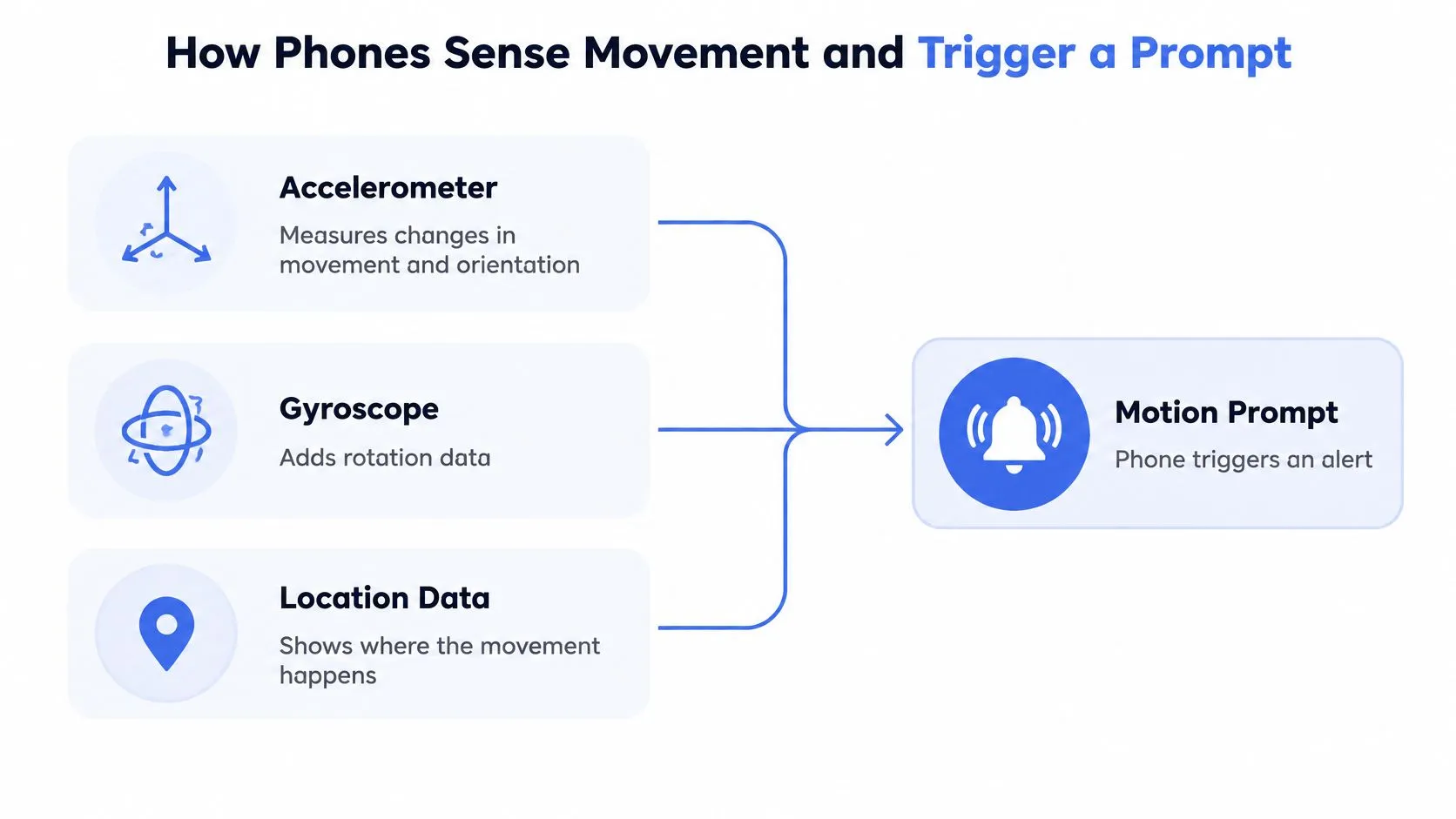
Almost every phone sold in the past fifteen years carries an accelerometer, a tiny component that measures changes in movement and orientation. A gyroscope adds rotation. Location data tells the system where the movement happened. Stack those three and a phone can infer whether someone has started walking, stopped unexpectedly, or dropped off a planned route.
The hardware didn’t start out universal. In 2008, only about 1 in 11 mobile phones shipped worldwide included an accelerometer, according to EE Times coverage of the mobile sensor market. By 2009 that had risen to roughly 1 in 5, and analysts projected 1 in 3 phones shipped in 2010 would contain one. Sony Ericsson had already put accelerometers in 18 of its 19 models introduced that year. Motion sensing went from a niche feature to standard equipment in about two product cycles.
The four stages between a step and a buzz
1. A sensor reading arrives. The accelerometer samples at a fixed rate and reports a small spike, a steady rhythm, or nothing at all.
2. A classifier interprets it. Software decides whether that pattern looks like walking, a vehicle, a phone sitting on a table, or an abrupt jolt.
3. A persistence check confirms it. This is the stage people underestimate. One odd reading is noise. A pattern held across several consecutive windows is a signal.
4. A notification is composed and sent. Only now does your screen light up.
Think of a pedometer that checks the time before it speaks. It counts your steps constantly, but it only reports once the count crosses a threshold you care about.
Two confusions worth knowing now
A phone left in a bag can register as still, which is why “no movement” doesn’t always mean “no movement from the person.” And a dropped phone produces a sharp, high-magnitude spike that can look like a fall to a naive classifier, which is exactly why the persistence stage exists.
For teams building this kind of sensing into their own products, the sensor stack and the notification logic are usually designed together rather than bolted on, a point covered well in this guide to developing wearable health apps.
When the chain completes, you should see more than a buzz. Expect the trigger state, a timestamp, and your last known location, so you can tell instantly whether the alert is current or stale.
How to Set Up Motion Prompts Step by Step
Six settings decide whether a motion prompt ever reaches you. Work through them in order, because each one can disable the next.
1. Grant motion and location permissions, including background location. This is the step that breaks everything downstream. Without precise location, Trip Mode and SOS location sharing degrade, and denying location access prevents Trip Mode, precision SOS location sharing, and related Safety Agent functionality from working as intended. The common slip is granting “while using the app” and assuming it covers a walk you never opened the app for.
2. Set monitoring hours around the risk, not the calendar. An evening walk home from dusk until arrival is a real window. An entire day is noise, and noise trains you to swipe alerts away.
3. Choose sensitivity to match the route. Higher sensitivity suits lone late walks where any unexpected pause matters. Lower sensitivity suits commutes with traffic lights, platform waits, and shop stops.
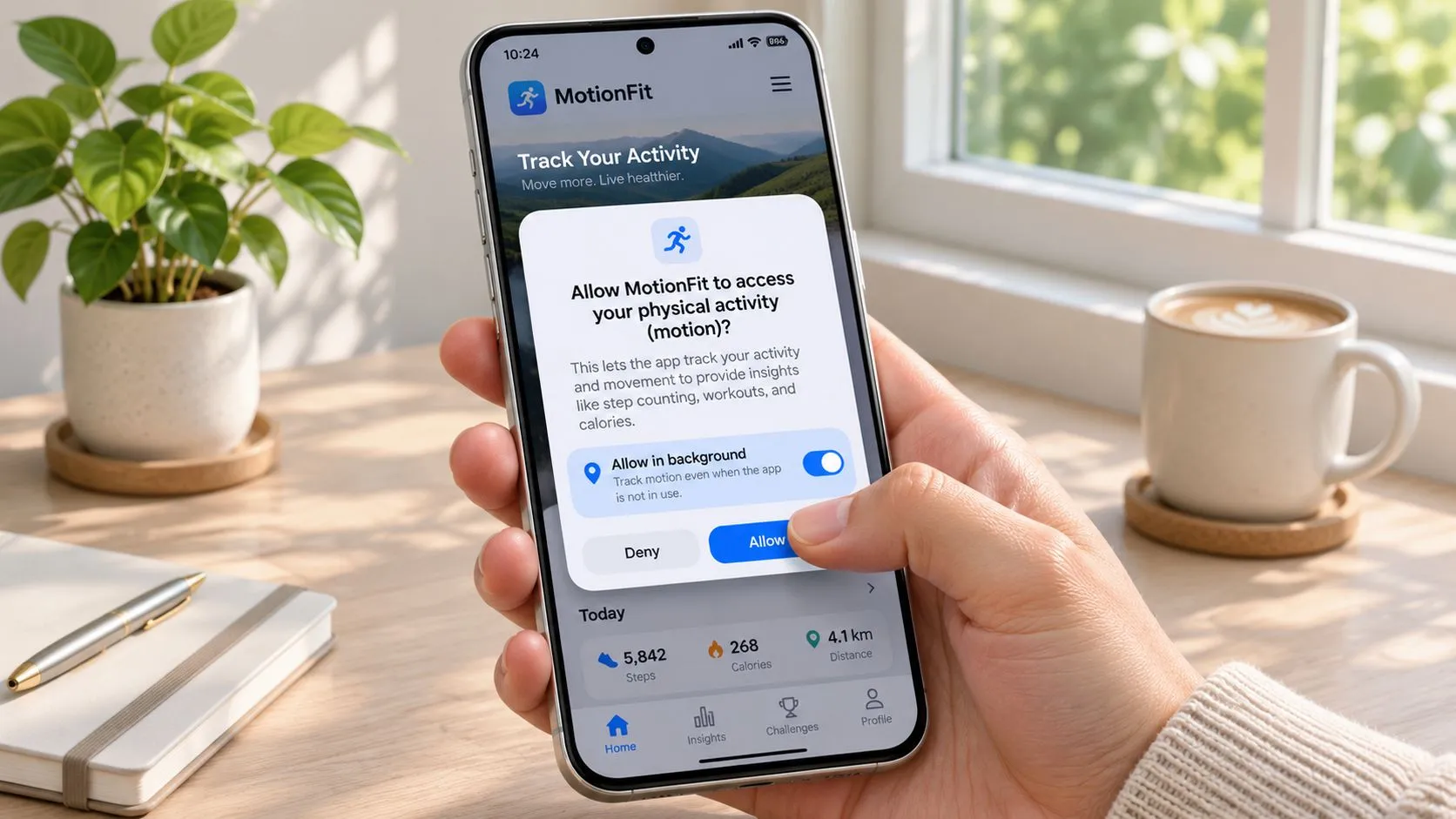
4. Decide who receives the prompt. Just you, one trusted contact, or a Squad whose members can watch the live route. Whoever it is needs to know what to do when it fires, so tell them.
5. Allow notifications and run a live test. Sit still past your set interval and confirm the prompt lands. A test you never ran is a setting you never verified.
6. Check Lock Screen and Focus settings. A prompt hidden behind a notification summary is a prompt you’ll see an hour late. There’s a useful walkthrough on whether your alarm goes off on silent if you’ve ever assumed a muted phone would still wake you.
The battery trade-off, in plain numbers
Continuous sensing is cheap if you keep it dumb and expensive if you make it clever. Microsoft Research measured an accelerometer-based continuous-sensing platform drawing approximately 12.9 mW when active, roughly 60 times less energy than a typical smartphone’s main processor, averaging about 0.7 mW at 50 samples per second and 0.2 mW at 10 samples per second, per its LittleRock technical report.
That’s why good systems sample at a low rate during your monitoring window and only spin up GPS, networking, and heavier classification after a genuine anomaly. It’s also why they require the abnormal condition to persist across several windows before alerting. Those figures are platform benchmarks rather than universal phone values, so judge your own battery cost by watching drain over a week of real use.
Recommended motion prompt settings by scenario
| Scenario | Monitoring window | Sensitivity | Who receives the prompt |
|---|---|---|---|
| Late walk home | Dusk until arrival | Higher | You and one trusted contact |
| Daily commute | Peak travel times only | Lower | You only, to avoid stop-related prompts |
| Rideshare trip | Full trip duration | Higher | Squad viewers with live route |
| Lone working shift | Full shift hours | Medium | Supervisor or Safety Agent |
Give any configuration a week, then review it. If the same stretch of road triggers prompts every day, narrow the window rather than switching the feature off.
Responding to a Prompt and When It Escalates
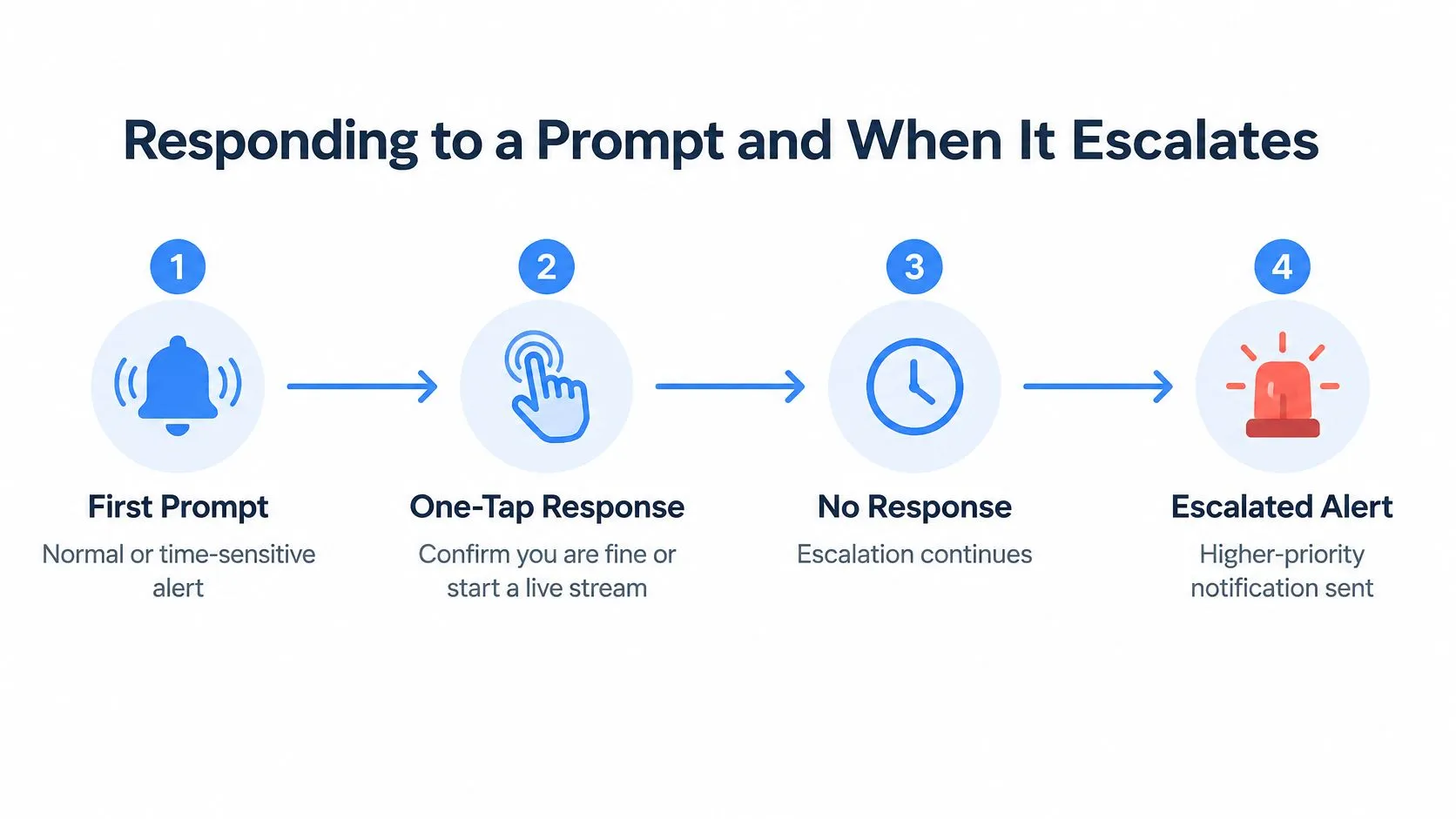
An alert is only the first rung. Each level up the ladder costs more attention and reaches more people, which is why the lower rungs should stay easy to clear. Knowing which rung you’re standing on tells you how fast to act and who else is already involved.
Rung one, the ordinary prompt
A normal or time-sensitive notification arrives and asks for one tap: confirm you’re fine, or start a live stream. Nothing else in your evening changes. Clear it and the chain closes.
The cheapest response in the whole system is that single tap, so make it a reflex. A prompt answered in seconds never becomes anyone else’s problem.
Rung two, a watcher takes over
Silence past the defined interval moves the alert to a person, typically a Squad member or a trained agent who can call, chat, and view the live stream. 24/7 security monitoring earns its place, because the watcher is awake even when your phone is in a coat pocket.
This rung exists for the cases where you can’t answer: hands full, phone buried, or a situation where pulling out a screen is the wrong move. The watcher doesn’t need you to explain. They can see.
Rung three, emergency escalation
Only a high-confidence event reaches the top. Pressing SOS, or an emergency contact triggering it on your behalf, sends your stream and location straight to 911 through a 3rd-i Safety Agent.
Here’s a technical constraint that rarely gets mentioned. On a muted or Focus-mode iPhone, an ordinary notification stays silent. Apple states that Critical Alerts can override the mute switch and Do Not Disturb, present immediately, light the screen, and play a sound, and that they require a special entitlement issued by Apple, as set out in Apple’s Critical Alerts documentation. Apple treats them as urgent health or safety information and describes them as extremely rare, so they belong at the top of the ladder and nowhere else.
In 3rd-i, the critical alert an emergency contact receives on an SOS overrides silent mode and Do Not Disturb, sounds like an amber alert, and shows the user’s location. Those siren notifications are only received by emergency contacts who are also app friends and have critical alerts set to allowed.
Two practical consequences follow. First, choose emergency contacts inside the app rather than assuming a phone contact counts. Second, ask each one to allow critical alerts, because a contact who declined the permission gets a quieter version of your worst night.
A sent notification is not a confirmed response. Log delivery, acknowledgement, and escalation separately, then check the gaps.
When a prompt never arrives
Work through this in order:
- Permissions. Confirm motion and background location are still granted. App updates and OS upgrades can revoke them.
- Notification settings. Check they’re allowed and not folded into a summary or a Focus mode.
- Connectivity and battery. A phone in a tunnel or on low power won’t deliver anything.
- The window itself. Confirm the monitoring hours cover this time.
- Critical Alert authorization. If a siren stayed silent on a muted iPhone, the app may lack entitlement, in which case the alert follows ordinary mute rules.
Cutting False Alarms With Personal Patterns
A motion prompt is a yes-or-no sensor wrapped in a very personal routine. A pause at a scheduled transit stop and a pause on a dark residential street can look identical to a fixed threshold, which is why generic settings wear people down fast.
Personalization changes the math. A 2025 home-monitoring study using data from 25 adults found that false alarms fell from 8 on the first day to 1 after the system learned each participant’s movement patterns over several days, as reported in this study of adaptive movement monitoring. The system did not become more sensitive. It became better at recognizing what normal looked like.
The trade-off runs in both directions. Overly sensitive alerts train you and your watchers to ignore the next one. Overly conservative thresholds stay quiet through the incident that mattered. The prompt is only the first link in the chain; your answer and your next adjustment are what teach it.
Habits that cut false prompts
- Match the window to the routine. Monitor the walk, not the whole day.
- Keep separate settings per scenario. A commute profile and a late-walk profile should not share a sensitivity value.
- Answer every prompt, even the silly ones. Fast replies teach the system what normal looks like.
- Treat a repeated false prompt as a settings signal. Adjust the window. Don’t disable the feature.
Treat sensitivity as a starting point you refine with real prompts, not a guarantee.
Accessible Alerts for Every User
A vibration under a car seat can look exactly like a vibration on a bedside table until the person wearing the phone cannot feel it, hear it, or reach it in time. Accessible design is what keeps a motion prompt from becoming a private alarm that only the phone understands.
A 2025 mixed-methods study involving 65 people with diverse disabilities identified accessibility requirements for emergency mobile applications and stressed aligning communication methods with varied user capabilities, published in Universal Access in the Information Society. The practical lesson is simple: send the same event through more than one sense, and make the next action obvious.
Four situations worth designing for
Deaf or hard of hearing. Use a strong vibration pattern plus an on-screen banner that stays until dismissed. If paired hearing devices are in use, check how tones are routed, because pairing can move an alert from speaker to device or reduce how well it is perceived; resources such as hearing aid guidance for Boca Raton adults can help frame that pairing conversation.
Low vision. A silent haptic buzz in a bag is easy to miss, so pair it with a distinct tone and spoken content where the platform supports it. Keep wording plain enough that a screen reader can convey it fast.
Motor impairment. Make one tap the target. Large response areas, repeated prompts, and a text channel to a Safety Agent matter when holding the phone or speaking out loud is hard.
Phone in a bag. The alert should repeat and switch channels after a set period instead of firing once into a zipped pocket.
The watcher side needs the same care. A family member or Safety Agent needs context to separate danger from ordinary movement: stream, audio, GPS location, and chat when those features are active. That is the idea behind the 3rd-i accessibility approach: alerts carry context, so the next step in the response chain is clearer.
Before relying on a setup, confirm four things: which channels fire, whether the alert repeats, who can respond or trigger SOS on the user’s behalf, and whether the test used the phone and settings the person carries.
Set Up Your First Motion Prompt Today
A late walk home is the right place to start. Pick the single scenario that matches your most common risk, usually that walk or a rideshare, and set the hours around it before you touch anything else.
Movement detection in 3rd-i prompts you to go live when you are moving during the hours you set. Treat that prompt like a seatbelt chime: easy to ignore, smarter to answer. One tap starts the stream, shares audio and location, and gives the people watching a live picture instead of a guess.
The response chain stays narrow. Answer the prompt and the moment closes. If something feels wrong, Go Live or SOS puts your stream and exact location in front of a trained Safety Agent, who can escalate through RapidSOS to 911. When an SOS is triggered, emergency contacts who are also app friends and have critical alerts set to allowed receive a critical alert that overrides silent mode and Do Not Disturb, sounds like an amber alert, and shows your location.
Say this part plainly: the app is not a substitute for calling emergency services. If you are in danger now, call.
Run one rehearsal this week. Set the hours, send a test prompt to a trusted contact, confirm they can see your location, and agree what each of you does if a prompt goes unanswered. Then revisit permissions and sensitivity, because a working setup usually fails there first.
3rd-i puts that chain in one app: motion prompts during chosen hours, live video and location for your Squad, and Safety Agents who can escalate to 911 through RapidSOS. If you want the alert to reach someone, visit 3rd-i and set up your first motion prompt tonight.